

.webp)
.webp)
Overview
Connect Square POS to Stash so supported Square catalog, location, and closed-order data can feed your inventory workflow. Keep selling in Square while Stash handles mapped stock deductions, purchasing, suppliers, counts, forecasting, and location-level inventory.
Once connected, Square locations are mapped to Stash shops and POS products are synced. Products that should move stock need an explicit Stash mapping. For recipe, bundle, or component-based products, Blueprints define what inventory should be deducted when the linked Square product sells.
Stash starts processing orders created after the POS connection is established. Historical Square orders are not backfilled into inventory.
How it works
Square remains the system your team uses at checkout. Stash pulls newly closed orders on a scheduled sync, approximately every 15 minutes.
- Closed Square orders are picked up by Stash after the connection is live.
- Location mappings route each Square location to the correct Stash shop.
- Product mappings and Blueprints determine which inventory items or components should move.
- Inventory transactions are recorded in Stash with a reference to the originating POS order.
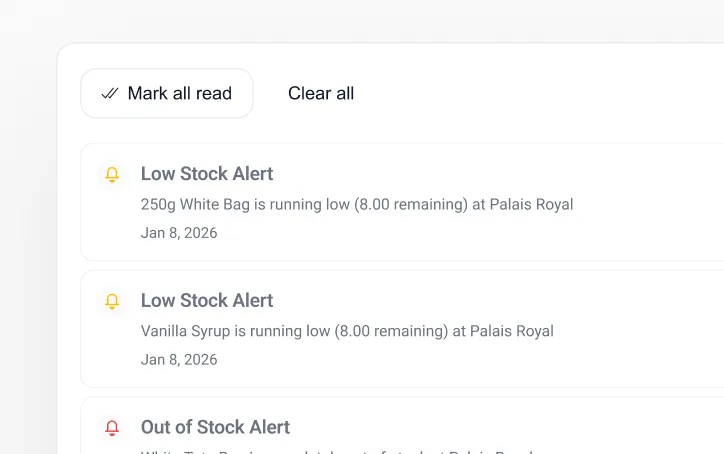
- Low-stock notifications and planning views update from the resulting inventory position.
Physical counts are still necessary for waste, breakage, theft, receiving differences, and other inventory movements a POS cannot observe. Refunds and voids do not automatically reverse a prior Stash stock deduction. Square modifiers are also not currently exposed in the order feed Stash receives, so modifier-level deductions require special handling.
Configure
- Create or sign in to your Stash workspace.
- Set up the Stash locations that correspond to your Square locations.
- Open Integrations in Stash and connect your Square account.
- Map each Square location to the correct Stash shop.
- Sync the Square product catalog.
- Link the Square products that should move inventory to the appropriate Stash inventory item or Blueprint.
- Check units and pack-size information so component deductions can be converted correctly.
- Run a real or test sale, close the order in Square, and allow up to roughly 15 minutes for the next Stash sync.
- Review the POS sync log and inventory transaction history to confirm the expected deduction.
For a clean launch, finish location and product mappings before normal sales start flowing. Orders processed before a required mapping exists are not retroactively deducted later. If your Square workflow depends heavily on modifiers, review the current Square modifier limitation in the POS sync guide before going live.


'%3e%3cg id='Final-Copy-2_2_' transform='translate(1275.000000, 200.000000)'%3e%3cpath class='st0' d='M7.4,12.8h6.8l3.1-11.6H7.4C4.2,1.2,1.6,3.8,1.6,7S4.2,12.8,7.4,12.8z'/%3e%3c/g%3e%3c/g%3e%3c/g%3e%3cg id='final---dec.11-2020'%3e%3cg id='_x30_208-our-toggle' transform='translate(-1275.000000, -200.000000)'%3e%3cg id='Final-Copy-2' transform='translate(1275.000000, 200.000000)'%3e%3cpath class='st1' d='M22.6,0H7.4c-3.9,0-7,3.1-7,7s3.1,7,7,7h15.2c3.9,0,7-3.1,7-7S26.4,0,22.6,0z M1.6,7c0-3.2,2.6-5.8,5.8-5.8h9.9l-3.1,11.6H7.4C4.2,12.8,1.6,10.2,1.6,7z'/%3e%3cpath id='x' class='st2' d='M24.6,4c0.2,0.2,0.2,0.6,0,0.8l0,0L22.5,7l2.2,2.2c0.2,0.2,0.2,0.6,0,0.8c-0.2,0.2-0.6,0.2-0.8,0l0,0l-2.2-2.2L19.5,10c-0.2,0.2-0.6,0.2-0.8,0c-0.2-0.2-0.2-0.6,0-0.8l0,0L20.8,7l-2.2-2.2c-0.2-0.2-0.2-0.6,0-0.8c0.2-0.2,0.6-0.2,0.8,0l0,0l2.2,2.2L23.8,4C24,3.8,24.4,3.8,24.6,4z'/%3e%3cpath id='y' class='st3' d='M12.7,4.1c0.2,0.2,0.3,0.6,0.1,0.8l0,0L8.6,9.8C8.5,9.9,8.4,10,8.3,10c-0.2,0.1-0.5,0.1-0.7-0.1l0,0L5.4,7.7c-0.2-0.2-0.2-0.6,0-0.8c0.2-0.2,0.6-0.2,0.8,0l0,0L8,8.6l3.8-4.5C12,3.9,12.4,3.9,12.7,4.1z'/%3e%3c/g%3e%3c/g%3e%3c/g%3e%3c/g%3e%3c/svg%3e) Your Privacy Choices
Your Privacy Choices